
An Introduction to Dynamics 365 Base Attach Licensing
Microsoft Dynamics 365 offers a powerful suite of business applications, but its licensing can feel like a complex puzzle. One of the most misunderstood—and cost-critical—concepts is the base and attach model. For organizations looking to leverage multiple Dynamics 365 applications for their users, understanding this model is not just beneficial; it's essential for budget optimization and compliance. This guide on Dynamics 365 base attach licensing aims to demystify the topic by tackling the most persistent myths and providing clear, actionable guidance for IT administrators, procurement managers, and technology leaders. Getting this right means providing your team with the tools they need without overpaying, transforming licensing from a headache into a strategic advantage.
The core idea is simple: instead of buying every application at full price for a user, you designate one primary application license as the 'base' and then 'attach' subsequent application licenses at a significantly reduced cost. However, the rules governing what qualifies as a base, what can be attached, and how to structure this for different user roles are nuanced. Let's bust some myths.
Myth 1: You Have to Buy a Special 'Base' License Product
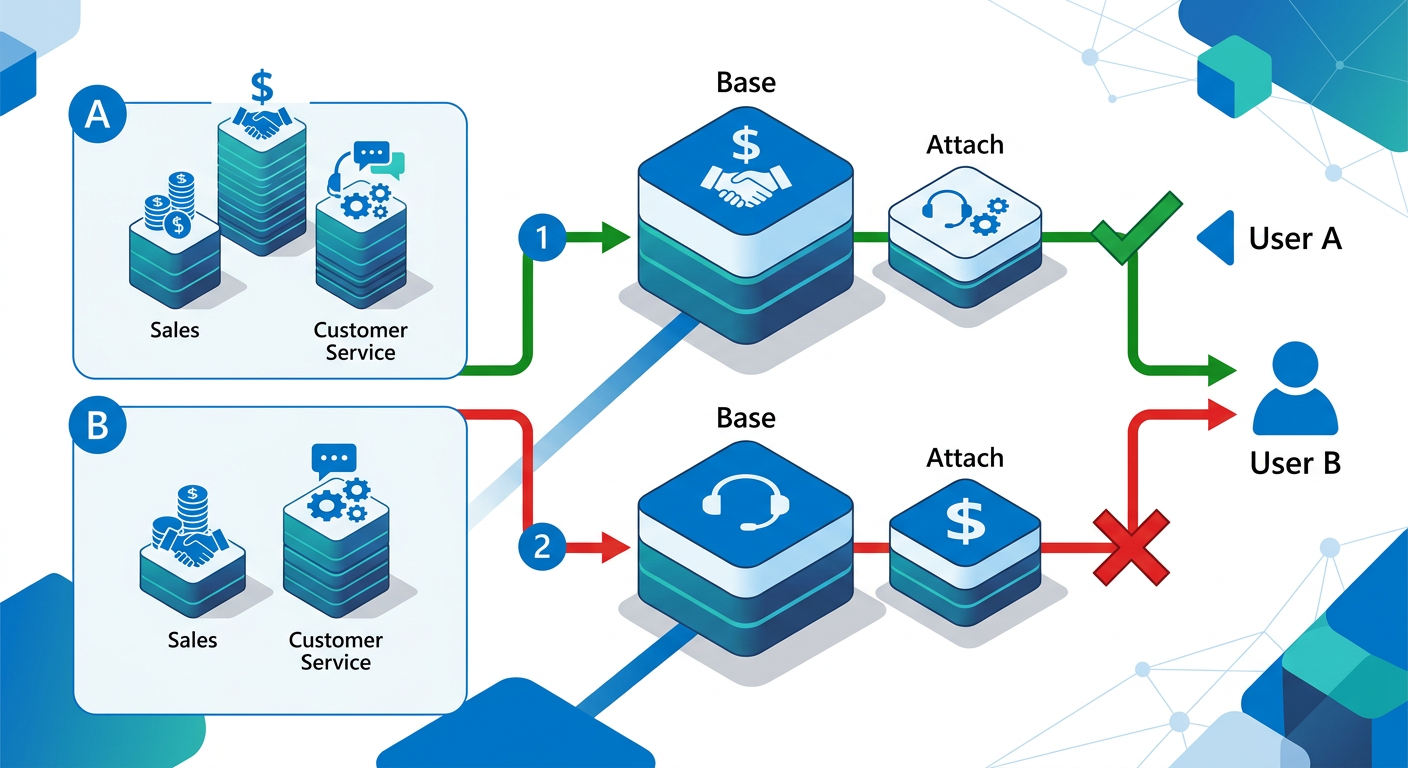
Myth: You need to find and purchase a specific, separate license called a 'Dynamics 365 Base License' before you can start attaching other apps.
Reality: There is no separate product, SKU, or item in the price list called a 'base license'. The 'base' license is simply the first qualifying full-user license you assign to a specific user. This is a fundamental concept in understanding how does d365 attach licensing work. When you purchase a standard, full-price license for an application like Dynamics 365 Sales Enterprise or Dynamics 365 Finance for a user, that license automatically becomes their designated base license. All subsequent 'attach' licenses are predicated on the existence of this initial full-price license.
Evidence
The official Microsoft Dynamics 365 Licensing Guide is the source of truth. It outlines the User Subscription License (SL) model where certain applications are designated as qualifying base licenses. The guide states:
"With the base + attach model, the first app a user is licensed for is the base license. Subsequent, qualifying apps can then be licensed as attach licenses at a reduced price."
Notice the language: "the first app a user is licensed for." It doesn't mention a separate product. The system is designed to identify the first full license as the foundation for that user's licensing profile.
What to do instead
Focus on user roles, not on finding a 'base' product. Follow this process:
- Analyze the User's Primary Function: What is the main business process this user is responsible for? Sales, customer support, project management, or finance?
- Select Their Primary Application: Choose the single Dynamics 365 application that provides the most comprehensive functionality for that primary role. For a salesperson, this is likely a dynamics 365 sales enterprise base license.
- Purchase the Full License: Acquire that application license at its standard, full price. This is now that user's base license. Any other apps they need can now be considered as potential attach licenses.
Myth 2: The Cheapest License Should Be Your Base License
Myth: To save money, I should choose the cheapest available Dynamics 365 application as the base license and then attach more expensive apps.
Reality: This is the exact opposite of how the model works and is a guaranteed path to overspending or non-compliance. Microsoft's rules are explicit: the base license must be the higher-priced license if a user needs multiple applications. The attach license discount is only applicable to licenses that are of equal or, more commonly, lesser value than the base license. The very logic of the discount is that you've already paid for the premium, primary-use application.
Evidence
The Dynamics 365 Licensing Guide clearly lists which applications can serve as a base and which can be attached. While it doesn't state prices, the hierarchy is clear. For example, within the Customer Engagement apps:
- Dynamics 365 Sales Enterprise and Customer Service Enterprise are often similarly priced. Either can serve as a base for the other.
- However, you cannot use a less expensive license, like Dynamics 365 Sales Professional, as a base to attach a more expensive license like Dynamics 365 Field Service.
The purpose of the model is to recognize the primary investment. Thinking about the cost of adding attach licenses in Dynamics 365 is only effective after you've correctly identified the highest-value license as the starting point.
What to do instead
Always start with the most expensive license. Here is the correct approach:
- List All Apps Per User: For a given user, list all the Dynamics 365 applications they need to perform their job.
- Identify the Priciest App: Check the license price list or consult with your Microsoft Partner/reseller to identify which of those required licenses is the most expensive.
- Assign the Base License: That most expensive license is the one you must purchase as the full-price base license.
- Add Attach Licenses: For all other required apps on the list, check the Licensing Guide to see if they are available as attach SKUs for the base you selected. If so, purchase them as attach licenses.
Myth 3: Any Dynamics 365 License Can Be Attached to Any Other
Myth: As long as I have a base license, I can attach any other Dynamics 365 app I want at a discount.
Reality: This is a common and costly misconception. Microsoft strictly defines which applications are considered qualifying base licenses for Dynamics 365 and, just as importantly, which applications can be attached to them. Attempting to attach non-qualifying licenses will fail at the procurement stage or lead to a non-compliant environment. You simply can I attach any d365 license is a question with a firm 'no' as the answer.
Evidence
The Dynamics 365 Licensing Guide contains specific tables that map base licenses to their available attach licenses. The rules are generally structured around application 'families':
- Customer Engagement Apps: Licenses like Sales Enterprise, Customer Service Enterprise, and Field Service can typically be a base for one another. You can buy Sales as a base and attach Customer Service, or vice-versa.
- Finance and Operations Apps: The rules are different here. For example, the dynamics 365 finance attach license rules dictate what can be attached to a Dynamics 365 Finance base license. Often, these are SCM (Supply Chain Management) or Commerce.
- Cross-Family Restrictions: Critically, you generally cannot attach a Finance and Operations app (like Finance) to a Customer Engagement base license (like Sales). The underlying platforms and use cases are considered distinct.
Mixing and matching without consulting the guide is a recipe for error. You cannot assume compatibility.
What to do instead
Treat the Dynamics 365 Licensing Guide as your definitive source of truth. Never assume.
- Step 1: Identify Your Base: As per previous points, determine the user's base license (e.g., Dynamics 365 Field Service).
- Step 2: Locate the 'Attach' Table: Find the table in the latest licensing guide that lists your chosen application in the 'Base License' column.
- Step 3: Verify Attach Options: Look across that row to see which other applications are explicitly listed as available to be attached. If the app you want to add is not in that list, you cannot license it as an attach SKU for that user. You would need to purchase it as another full-price license (which defeats the purpose and indicates a potential need to re-evaluate the 'base' choice) or reconsider if the user truly needs both apps with full permissions.
Myth 4: A User Can Have Multiple Base Licenses for Different Workloads
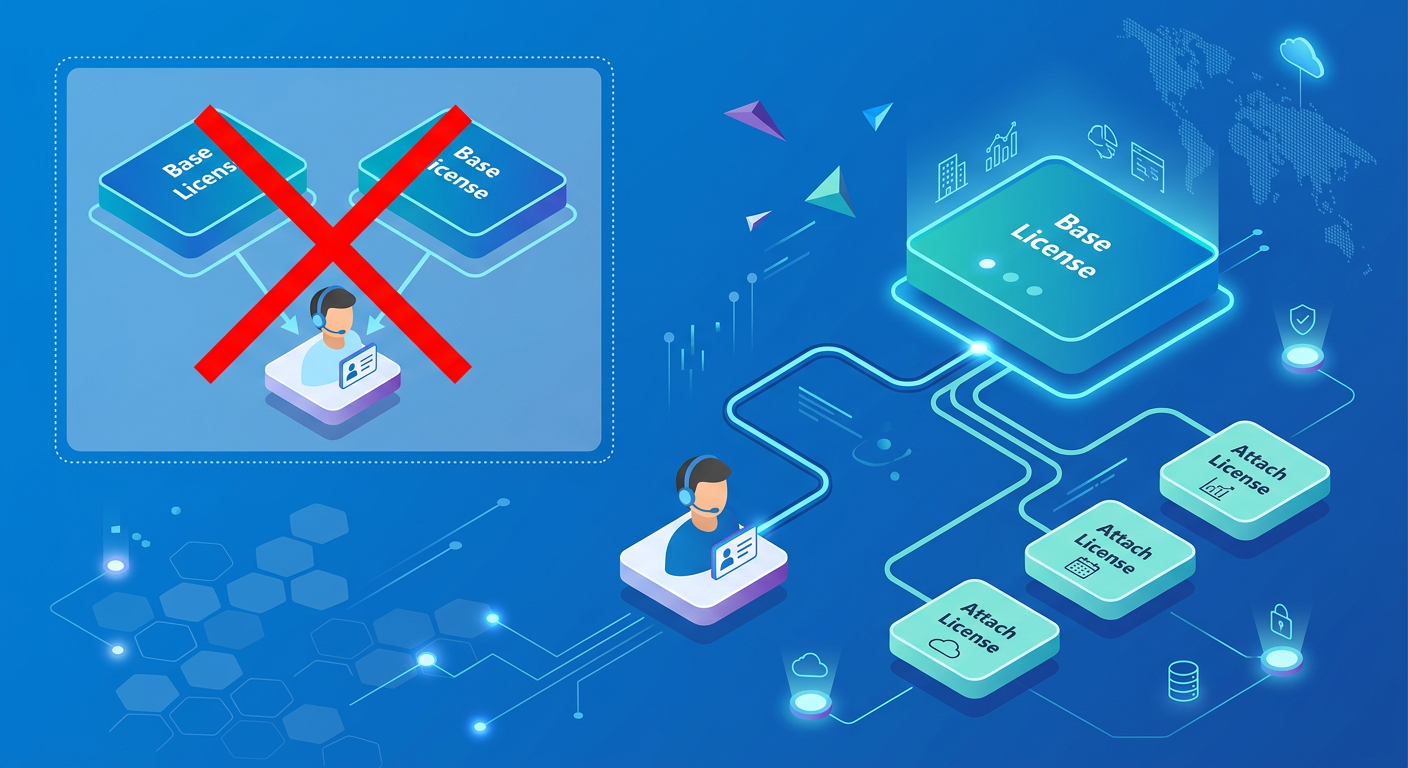
Myth: For a complex user role, I can assign one base license for their sales tasks and another base license for their finance tasks.
Reality: The model is built on a strict "one user, one base license" principle. A single user cannot have more than one base license assigned to them. The entire economic and technical structure of the attach model is that subsequent licenses are discounted because the primary license for that *user* has already been paid for. Attempting to assign two base licenses is functionally the same as just buying two standalone applications at full price, completely negating any potential savings from the base + attach model.
Evidence
Microsoft's licensing documentation consistently refers to "the" base license in the singular when discussing a user's entitlements. The model is user-centric. When licenses are assigned in the Microsoft 365 admin center, the system associates them with a single user identity. The attach SKUs are only made available for purchase/assignment if that user identity already has a qualifying prerequisite (the base license) in place. From a compliance perspective, an audit would view a user with two full-priced 'base-level' apps as a candidate for optimization, not as a valid licensing state under the attach model. This is a core tenet of mixing dynamics 365 licenses correctly.
What to do instead
Conduct regular licensing audits and enforce the "one user, one base" rule.
- Audit Your Users: Run a report of D365 license assignments for all users. Identify any individual who is assigned more than one full-price 'Enterprise' or 'Pro' level license.
- Re-evaluate the Primary Role: For each of these users, determine which of their assigned applications is truly their primary workload and highest-value license. That one should be kept as the base license.
- Convert to Attach: During your next license renewal or true-up with your Microsoft partner, de-provision the secondary full-price licenses and re-purchase them as the much cheaper 'attach' licenses, assuming they are a valid attach option for the chosen base. This single action can lead to immediate and substantial cost savings.
Myth 5: Team Member Licenses Can Be Used as a Base License
Myth: Team Member licenses are cheap, so I'll use them as the base and attach a full Sales or Customer Service license to save a lot of money.
Reality: This is unequivocally not allowed and fundamentally misunderstands the purpose of the Team Member license. Team Member licenses are designed for light-use scenarios, granting users limited rights across multiple applications. They do *not* qualify as a base license for attaching full-featured Enterprise or Professional applications. The hierarchy is clear: a base license must be a full-fledged application license itself.
Evidence
The Dynamics 365 Licensing Guide is very specific about the purpose and limitations of the Team Member license. It is described as a license for users who are not tied to a specific function but require basic access, such as:
- Reading data across all Dynamics 365 applications.
- Running reports and viewing dashboards.
- Performing limited tasks like updating personal information or submitting timesheets.
Furthermore, the tables that list qualifying base licenses explicitly name applications like 'Sales Enterprise', 'Customer Service Enterprise', 'Field Service', etc. The Team Member license is never included in this list of prerequisite base licenses. The comparison of Dynamics 365 Customer Service attach vs base is a discussion about full Enterprise licenses, not about trying to leverage a Team Member license.
What to do instead
Use Team Member licenses for their intended audience and purpose.
- For Light Users: Assign Team Member licenses to executives who only need to view dashboards, administrative staff who perform limited data entry across different departments, or employees in other departments who need read-only access to customer data.
- For Full Users: For users who need comprehensive functionality within one or more business apps (like a dedicated salesperson or customer service agent), you must start with a full Enterprise or Pro license as their base.
- Never Combine Them This Way: Do not attempt to use a Team Member license as a shortcut to a cheaper base. The system will not allow the purchase of an attach license with only a Team Member license as the prerequisite, and it would represent a serious compliance violation if circumvented.
Myth 6: The Base + Attach Model Is Too Complicated and More Expensive
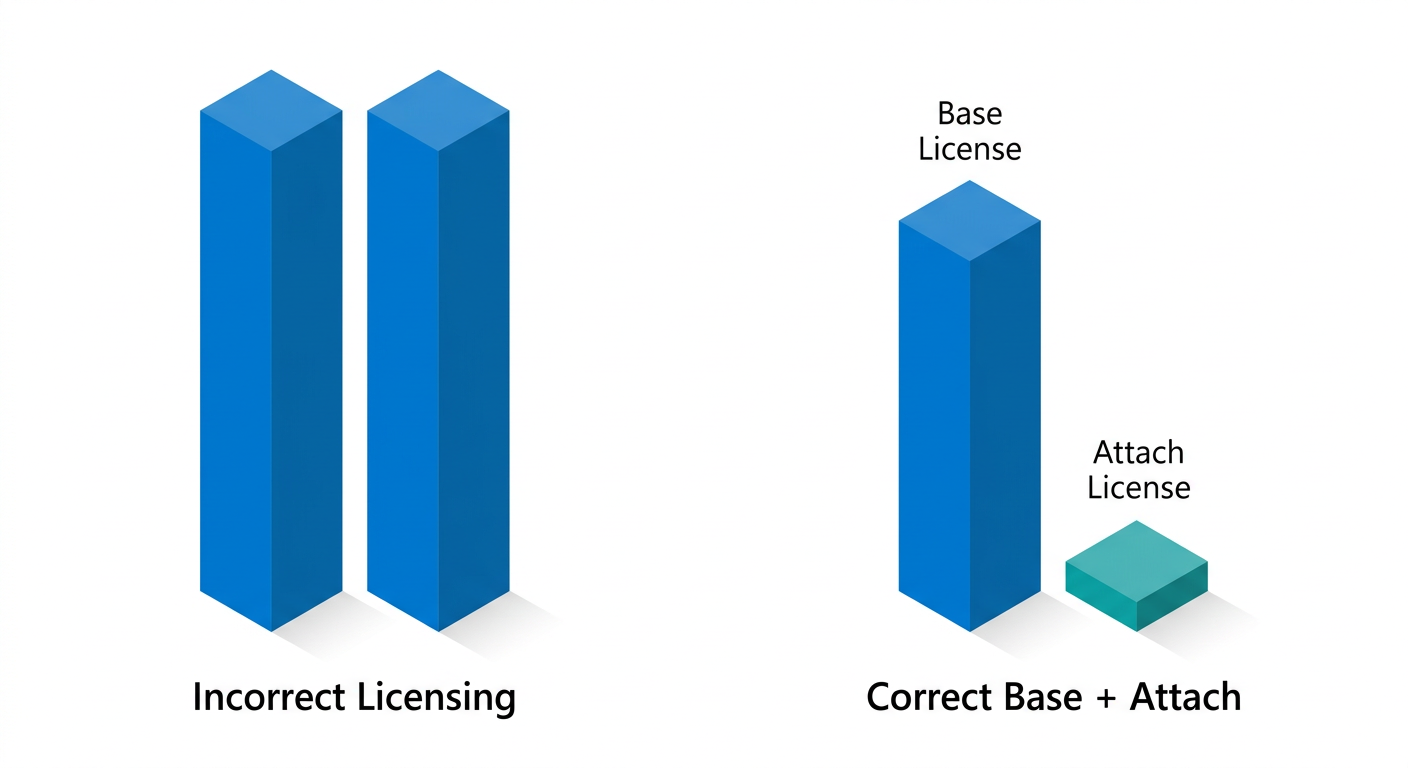
Myth: This base and attach stuff is confusing. It's probably just a marketing trick that ends up being more expensive than just buying the apps I need separately.
Reality: While it requires some initial understanding, the base + attach model is *always* more cost-effective than buying multiple full-price licenses for a single user when implemented correctly. The model was specifically created by Microsoft to encourage broader adoption of the Dynamics 365 suite by making it more affordable to license users for multiple workloads. The cost of adding attach licenses in Dynamics 365 is a fraction of the cost of a full license, leading to direct and significant savings.
Evidence
Let's use a simple relative cost example, without specific prices:
- Let's say a full 'Base' Application License (e.g., Sales Enterprise) has a relative cost of 100 units.
- A qualifying 'Attach' Application License (e.g., Customer Service Enterprise) has a relative cost of approximately 20-30 units.
Now, compare two scenarios for a user who needs both applications:
- Incorrect Licensing (Buying Standalone):
- Sales Enterprise License: 100 units
- Customer Service Enterprise License: 100 units
- Total Cost per User: 200 units
- Correct Licensing (Base + Attach):
- Sales Enterprise (Base) License: 100 units
- Customer Service Enterprise (Attach) License: ~25 units
- Total Cost per User: ~125 units
The savings are approximately 35-40% per user who requires more than one app. For an organization with hundreds of such users, this translates into massive annual savings.
What to do instead
Embrace the model and use it as a strategic cost-saving tool.
- Educate Your Team: Ensure your procurement and IT teams understand this model. Share this guide or official Microsoft resources.
- Model the Costs: Before any major renewal or new project, model the licensing costs using both the incorrect 'standalone' method and the correct 'base + attach' method. The business case will be self-evident.
- Work with an Expert: Engage with a certified Microsoft Licensing Partner. They live and breathe these rules and can quickly help you optimize your licensing for your specific user roles and needs, ensuring you get the maximum value from your investment. They can provide a detailed analysis based on the latest dynamics 365 licensing guide 2024.
📊 Comparison
| Feature | Scenario A: Incorrect Licensing (2x Full Licenses) | Scenario B: Correct Licensing (Base + Attach) |
|---|---|---|
| User Role | Sales Manager needing both Sales and Customer Service insights. | Sales Manager needing both Sales and Customer Service insights. |
| Required Apps | Dynamics 365 Sales Enterprise, Dynamics 365 Customer Service Enterprise | Dynamics 365 Sales Enterprise, Dynamics 365 Customer Service Enterprise |
| License 1 Assigned | Dynamics 365 Sales Enterprise (Full Price) | Dynamics 365 Sales Enterprise (Base License) |
| License 2 Assigned | Dynamics 365 Customer Service Enterprise (Full Price) | Dynamics 365 Customer Service Enterprise (Attach License) |
| Relative Cost | ~200% (100% + 100%) | ~125% (100% + ~25%) |
| Compliance Status | Compliant, but highly inefficient and costly. | Compliant and cost-optimized. |
| Efficiency Grade | F - Significant overspending on licensing. | A+ - Optimal use of Microsoft's licensing model. |