
Introduction: Beyond the 'Pro' Baseline
When you purchase a new business-class PC, it almost invariably comes with Windows 11 Pro pre-installed. For years, the 'Professional' edition of Windows has been the de facto standard for businesses of all sizes. It's powerful, familiar, and packed with features that cover the essential needs of a productive and secure workforce. But as organizations grow and the digital landscape becomes more complex and hostile, a crucial question arises: is 'Pro' enough?
This is where Windows 11 Enterprise enters the conversation. It isn’t an entirely different operating system; rather, it's a superset of Windows 11 Pro. It includes every feature found in Pro and builds upon that foundation with an exclusive suite of advanced tools designed for the unique challenges of large-scale IT operations. These challenges often involve stringent security requirements, complex compliance mandates, and the need for zero-touch device management across a global fleet.
Choosing between Pro and Enterprise isn't about which one is 'better' in a vacuum. The correct choice depends entirely on your organization's scale, security posture, management strategy, and licensing model. This article will provide a detailed, practical comparison to help you make an informed decision.
This decision directly impacts your security, operational efficiency, and total cost of ownership (TCO). While Pro is a capable starting point, Enterprise is designed to solve problems at a scale that Pro simply isn't equipped to handle.
📊 Core Features & Foundational Differences
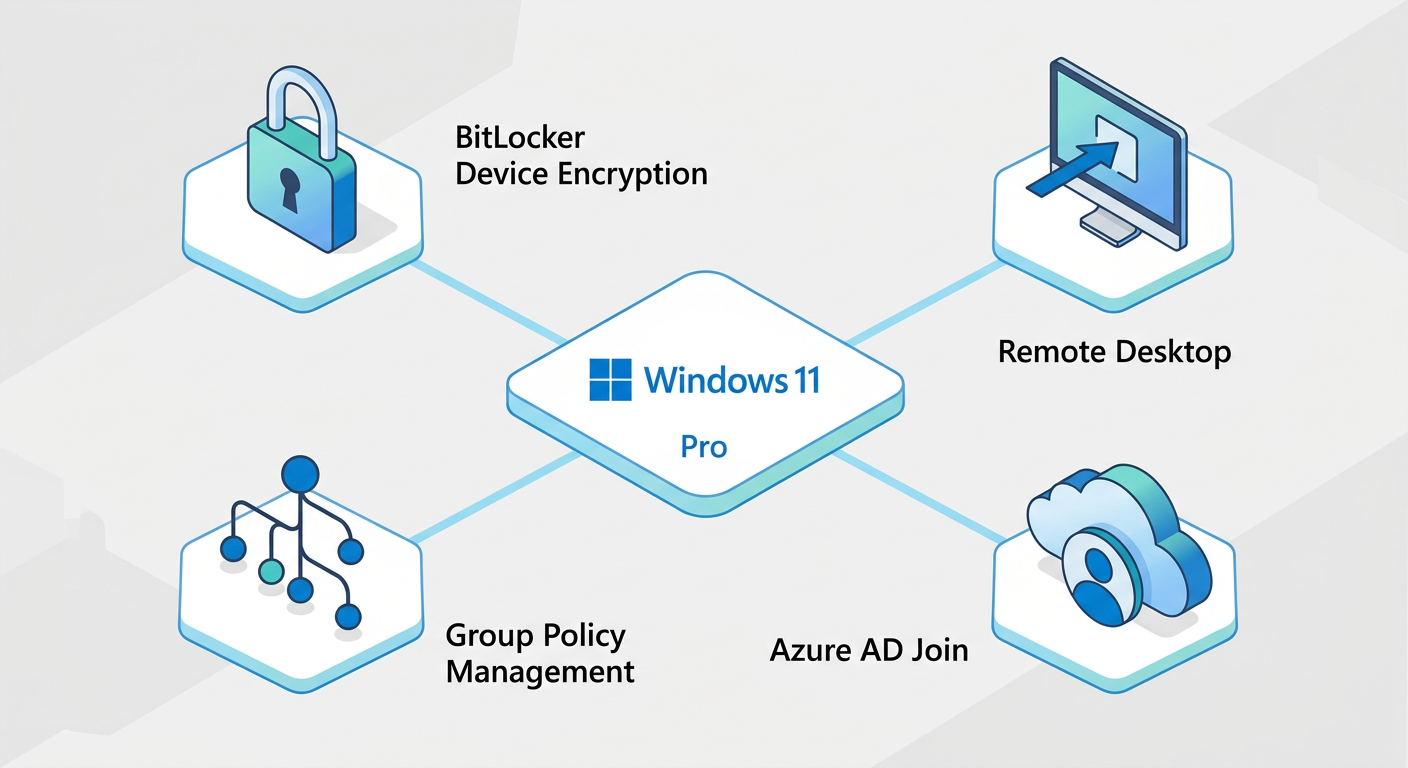
At their core, Windows 11 Pro and Enterprise share the same modern interface, performance optimizations, and fundamental user experience. An employee using a Pro machine and one using an Enterprise machine for standard office tasks would not notice any difference. Both editions provide the essential tools that modern businesses rely on.
What Windows 11 Pro Brings to the Table
Windows 11 Pro is a comprehensive operating system that serves as the bedrock for most business activities. Its feature set is robust and addresses the primary needs of small to medium-sized businesses (SMBs) and many smaller enterprise departments. Key features include:
- BitLocker Device Encryption: Provides full-disk encryption to protect data at rest. If a device is lost or stolen, the data remains inaccessible without the proper credentials.
- Group Policy Management: The classic tool for IT administrators to configure and enforce settings for computers and users within an Active Directory domain.
- Remote Desktop: Allows users to connect to and control their work PC from another device, essential for remote and hybrid work scenarios.
- Azure Active Directory (Azure AD) Join: Enables devices to be joined directly to your cloud-based Azure AD tenant, facilitating modern, cloud-centric identity and access management.
- Windows Information Protection (WIP): Helps prevent accidental data leakage by differentiating between personal and corporate data, applying protection policies to the latter. (Note: Microsoft is transitioning WIP capabilities into the more comprehensive Microsoft Purview Data Loss Prevention.)
- Assigned Access: Locks down a device to run a single application, ideal for kiosk or specific-task-worker scenarios.
For many organizations, this feature set is perfectly adequate. It provides strong security, solid management capabilities, and the flexibility needed for a modern workforce. However, the story changes as an organization's complexity and risk profile increase.
🔐 Security: Where Enterprise Creates a Fortress
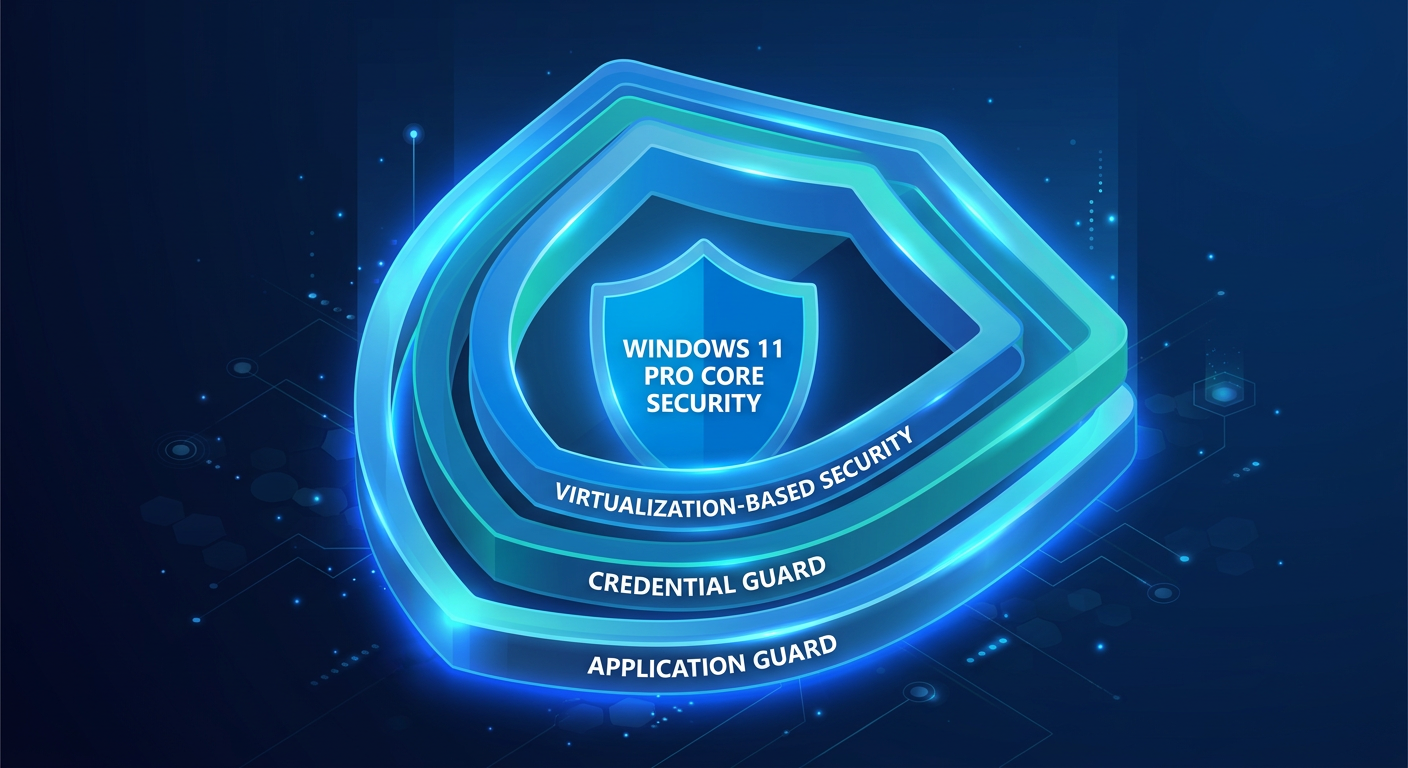
While Windows 11 Pro has strong foundational security, Windows 11 Enterprise is architected for a world of advanced, persistent threats. It operates on an 'assume breach' principle, providing deep, hardware-level defenses to protect an organization's most sensitive assets: user credentials and system integrity. The security gap between Pro and Enterprise is arguably the single most important factor in the decision-making process.
Virtualization-Based Security (VBS) in Action
Many of Enterprise's most powerful security features leverage VBS, which uses the hardware hypervisor to create isolated memory regions, sandboxing critical system processes from the rest of the operating system. This makes it exponentially more difficult for even privileged malware to compromise them.
Key Enterprise-exclusive security features include:
- Windows Defender Credential Guard: This is a game-changer for preventing credential theft attacks like Pass-the-Hash. It uses VBS to isolate the Local Security Authority Subsystem Service (LSASS) process, which stores user credentials. Even if an attacker gains full administrative privileges on the OS, they cannot directly access the credential material protected by Credential Guard.
- Windows Defender Application Guard (WDAG): When a user browses an untrusted website, WDAG opens the site inside a lightweight, containerized virtual machine. This isolated environment prevents any malware on the site from reaching the host operating system, the user's data, or the internal corporate network. Once the browser tab is closed, the entire container is discarded, along with any threats it contained.
- Microsoft Defender for Endpoint: While this is a separate subscription (often bundled with Microsoft 365 E5), Windows 11 Enterprise is the primary client OS that supports its full capabilities. It's a full-fledged Endpoint Detection and Response (EDR) platform that provides threat and vulnerability management, attack surface reduction, behavioral-based threat detection, and automated investigation and response.
For organizations in finance, healthcare, government, or any other sector handling sensitive data, the protections offered by Credential Guard and Application Guard are not just 'nice-to-haves'; they are foundational pillars of a modern security architecture. They directly mitigate some of the most common and damaging attack vectors used by threat actors today.
⚙️ Management & Deployment at Scale
Managing a dozen, or even a hundred, PCs with Windows 11 Pro is entirely feasible using tools like Microsoft Intune or traditional Group Policy. However, when the fleet grows to thousands or tens of thousands of devices, often distributed globally, the logistical challenges of deployment, configuration, and maintenance become immense. Windows 11 Enterprise provides a toolset specifically designed to automate and simplify these large-scale operations.
Zero-Touch Deployment and Cloud-Native Management
The philosophy of Enterprise management is to move away from manual, image-based deployment toward a modern, automated, cloud-driven model.
- Windows Autopilot: This is a cornerstone of modern device lifecycle management. Autopilot allows IT to pre-register devices so that when a user receives a factory-sealed laptop, they simply unbox it, turn it on, connect to the internet, and enter their corporate credentials. The device then automatically transforms itself into a fully configured, policy-enforced, and business-ready state without any IT intervention. This eliminates the need for creating, maintaining, and deploying custom operating system images.
- Universal Print: A cloud-based printing solution included with Enterprise subscriptions that moves printing infrastructure to the Microsoft 365 cloud. It eliminates the need for on-premises print servers and their associated maintenance overhead, and it provides a secure, centralized way for IT to manage printers and for users to print from anywhere.
- AppLocker: While Pro has basic kiosk functionality, AppLocker is a much more granular and powerful application control tool. It allows administrators to create rules to allow or deny applications from running based on attributes like the publisher, product name, or file hash. This is a critical component of a defense-in-depth strategy, preventing unauthorized or malicious software from executing.
- DirectAccess and Always On VPN: Both are Enterprise features providing seamless and automatic remote connectivity to the corporate network. Always On VPN is the modern successor, offering a more robust and manageable solution that keeps devices connected whenever they have an internet connection, without requiring user interaction. This improves both security and user experience compared to traditional manual VPNs.
💡 Virtualization Rights and Servicing Channels
For organizations leveraging virtual desktop infrastructure (VDI) or those with specialized, mission-critical systems, Windows 11 Enterprise offers distinct licensing and servicing options that are entirely unavailable for Pro users.
VDI and Azure Virtual Desktop (AVD)
One of the most significant financial and operational advantages of Enterprise is its licensing for virtual environments. When deploying Windows in a VDI environment like Azure Virtual Desktop or Citrix, licensing becomes paramount.
- Multi-session Windows 11: This is an exclusive feature for Enterprise license holders. It allows multiple users to connect to a single Windows 11 virtual machine simultaneously, each with their own independent desktop experience. This dramatically reduces costs by pooling resources and lowering the number of virtual machines required to support a given number of users. Windows 11 Pro does not have the rights for multi-session deployment; it can only be used in a 1:1, user-to-VM scenario, which is far less efficient at scale.
- Windows 365 Cloud PC: The license for Windows 11 Enterprise is included in the cost of a Windows 365 Enterprise Cloud PC, which provides users with a dedicated, persistent, cloud-based Windows experience.
The Long-Term Servicing Channel (LTSC)
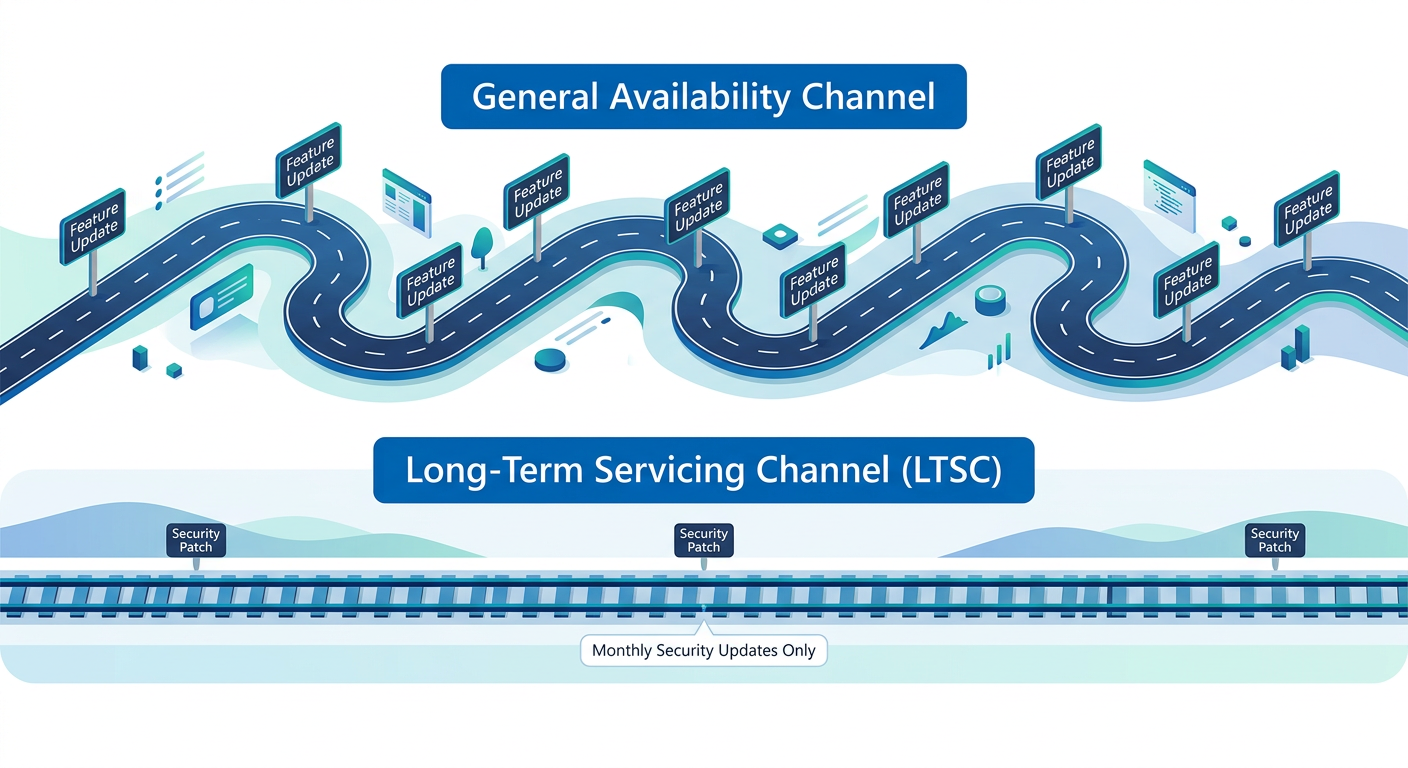
While most corporate PCs run on the General Availability Channel (GAC), receiving regular feature updates, certain specialized systems cannot tolerate such changes. Windows 11 Enterprise offers the LTSC as a solution.
- What it is: The LTSC is a special version of Windows that receives security updates for a very long period (typically 10 years) but receives no feature updates. The feature set is frozen at the time of release.
- Who it's for: The LTSC is exclusively for specialized, single-purpose devices that cannot afford to have their functionality altered by a feature update. Examples include:
- Systems controlling manufacturing machinery (PLCs).
- Medical equipment like MRI or CT scanners.
- Point-of-sale systems or ATMs.
- Air traffic control systems.
⚠️ Crucial Guidance: The LTSC should never be used for general-purpose desktops or laptops for information workers. Doing so would mean missing out on new security features, performance improvements, and modern capabilities. It is a niche solution for a specific problem, not a way to avoid updates for everyday users.
✅ Licensing: How to Acquire Enterprise (and a Note on OEM)
The final piece of the puzzle is understanding how each edition is licensed. The acquisition path for Windows 11 Enterprise is fundamentally different from that of Pro, reflecting its role as an enterprise-grade solution.
Acquiring Windows 11 Pro
Windows 11 Pro is widely available through several legitimate channels:
- Pre-installed (OEM): The most common method. When you buy a PC from a major manufacturer like Dell, HP, or Lenovo, it typically includes an OEM (Original Equipment Manufacturer) license of Windows 11 Pro tied to that specific hardware.
- Retail Purchase: You can buy a full packaged product (FPP) or digital download of Windows 11 Pro to install on a custom-built PC or to upgrade an older, eligible version of Windows.
- Volume Licensing: Organizations can purchase Windows 11 Pro licenses through a Volume Licensing agreement, which is often the most cost-effective way to acquire licenses for multiple PCs.
Acquiring Windows 11 Enterprise
Crucially, Windows 11 Enterprise is an upgrade license. You cannot buy it as a standalone, full operating system. It requires a device to have a valid, underlying license for Windows 11 Pro.
The primary ways to acquire the rights to Windows 11 Enterprise are:
- Microsoft 365 Subscriptions: This is the most common and recommended method today. A Microsoft 365 E3, E5, or A3/A5 (for academic institutions) subscription includes the license to upgrade a qualifying Windows 11 Pro device to Enterprise. The moment a user with one of these licenses signs into a Pro machine, it can automatically step up to the Enterprise edition. This model bundles the OS upgrade with Office 365 apps and modern management tools like Intune.
- Volume Licensing: Organizations can purchase Windows 11 Enterprise upgrade licenses or Software Assurance (SA) for Windows Pro licenses through traditional Volume Licensing agreements.
- Cloud Solution Provider (CSP): Licenses can also be procured through a CSP partner, offering flexibility and potentially value-added services.
A Critical Warning on Standalone OEM Licenses
When searching for Windows licenses online, you may encounter sellers offering standalone 'OEM' keys at a significant discount. It is vital to understand that this is not a legitimate sales channel for end-users or businesses.
Official Microsoft Policy: OEM licenses are intended only for System Builders to pre-install on new machines they sell. They are not transferable and are tied to the first machine they are installed on. Any website or seller offering a standalone OEM key or sticker for you to use on your own PC is violating Microsoft's distribution terms. To license a PC you are building or upgrading, you must purchase a full Retail license or use Volume Licensing. Legitimate business licensing is handled via Volume Licensing or Microsoft 365 subscriptions.
📊 Comparison
| Feature | Windows 11 Pro | Windows 11 Enterprise |
|---|---|---|
| Core User Experience & Interface | ✅ Yes | ✅ Yes |
| BitLocker Device Encryption | ✅ Yes | ✅ Yes |
| Group Policy Management | ✅ Yes | ✅ Yes |
| Azure AD Join | ✅ Yes | ✅ Yes |
| Remote Desktop Host | ✅ Yes | ✅ Yes |
| Windows Defender Credential Guard | ❌ No | ✅ Yes |
| Windows Defender Application Guard | ❌ No | ✅ Yes |
| AppLocker | ❌ No | ✅ Yes |
| Windows Autopilot | ❌ No | ✅ Yes |
| Universal Print | ❌ No | ✅ Yes |
| DirectAccess / Always On VPN | ❌ No | ✅ Yes |
| VDI Multi-session Rights | ❌ No | ✅ Yes |
| Long-Term Servicing Channel (LTSC) | ❌ No | ✅ Yes |
| Microsoft Defender for Endpoint Integration | Limited | ✅ Full EDR Capabilities |