Background: The Architecture of a Licensing Crisis 🏗️
In the landscape of modern enterprise infrastructure, maintaining software compliance while ensuring seamless deployment is a delicate balance. For mid-sized organizations that lack the scale for a full-blown Key Management Service (KMS) infrastructure, the Multiple Activation Key (MAK) remains the go-to solution for activating Windows and Office. However, many IT departments are caught off guard by MAK activation limits and how to request a reset when those limits are prematurely reached.
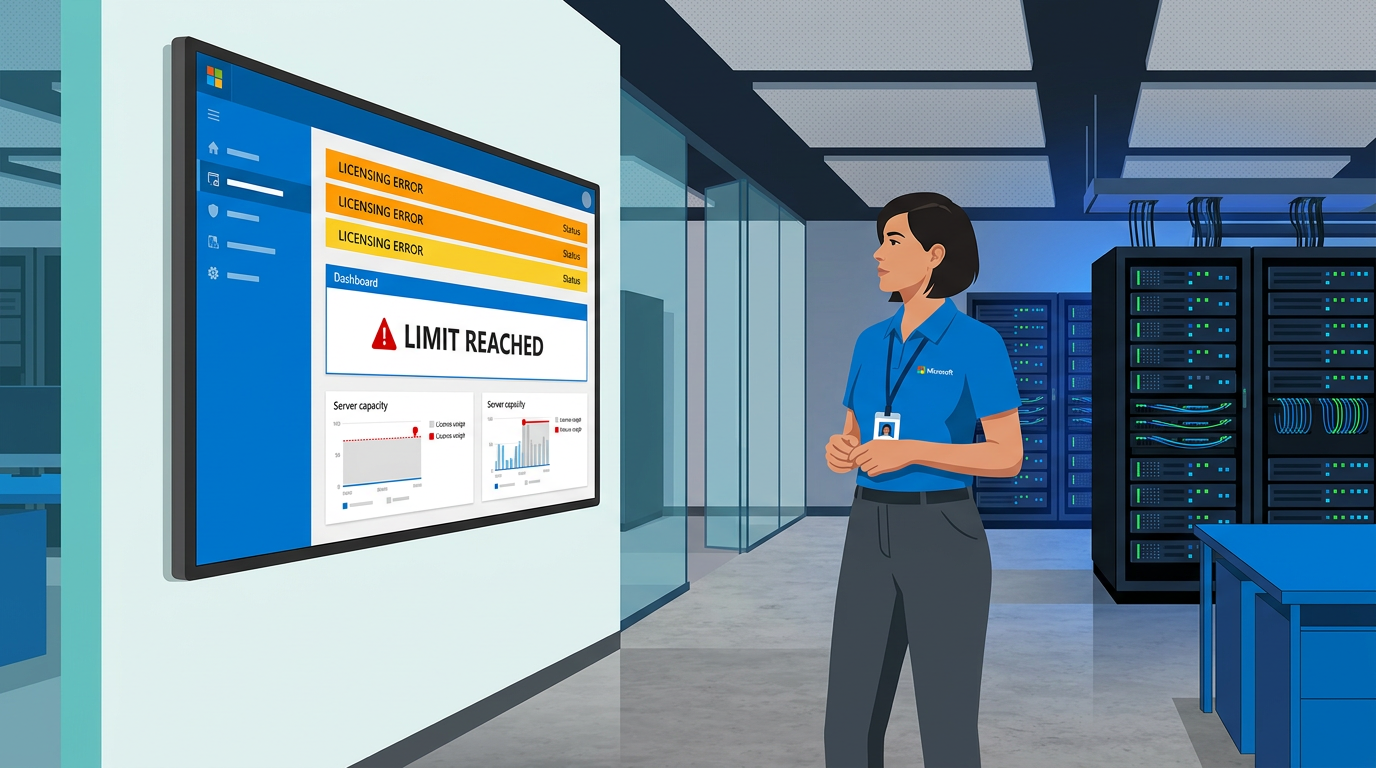
Precision Design Associates (PDA), a mid-sized architectural firm with 450 employees, recently encountered a critical deployment stall. As they began a firm-wide migration to Windows 11, their imaging process ground to a halt. Every new machine displayed the dreaded error code 0xC004C008, indicating that the activation server determined the specified product key could not be used. This case study explores how PDA identified the bottleneck in their Volume Licensing strategy and the specific steps they took to restore their deployment capabilities.
"We assumed our Volume License key was infinite," noted the Lead Systems Engineer. "We didn't realize that every re-image of a workstation was eating into a finite pool of activations that Microsoft assigns based on the initial purchase."
The Challenge: When the Key Runs Dry ⚠️
The primary challenge stemmed from a misunderstanding of how MAK activations are consumed. Unlike Retail licenses—which are tied to a single user or device—or Volume Licensing via KMS—which uses a local server to handle activations—MAK keys communicate directly with Microsoft’s hosted activation services. Each time a technician at PDA performed a "clean install" to fix a performance issue or repurposed a laptop for a new hire, one activation was deducted from their total pool.
By mid-2025, PDA had performed several hardware refreshes. Their original purchase of 500 Windows licenses had an activation limit of 625 (Microsoft typically provides a 25% buffer for Volume Licenses). However, due to frequent re-imaging and a lack of standardized decommissioning processes, they hit the 625-activation ceiling while only having 410 active machines in the field. The challenge was threefold:
- Deployment Stoppage: 40 new workstations for a high-priority project could not be activated, leaving them in a "non-genuine" state.
- Lack of Visibility: The IT team didn't know how to check MAK activation count remaining effectively until the failure occurred.
- Compliance Anxiety: There was a fear that hitting the limit implied they were out of compliance, though they physically owned fewer machines than their license entitlement.
Without a clear path forward, the firm faced potential downtime for new hires and the inability to push critical security updates that sometimes require a "genuine" status for full functionality.
Options Considered: Finding the Path to Reactivation 🔍
Upon realizing the situation, the IT leadership at PDA evaluated three primary pathways to resolve the activation blockage. Each had distinct implications for their long-term infrastructure strategy.
Option 1: Purchasing New Licenses
The most immediate, albeit expensive, solution was to simply buy more licenses to get a new MAK. However, this was quickly discarded. The firm already legally owned the rights to the software; they were merely blocked by an administrative counter. Furthermore, purchasing standalone OEM keys was strictly forbidden by their corporate policy, as they required the re-imaging rights provided only by Volume Licensing. They knew that Retail or Volume Licensing is the only legitimate path for end users, and buying OEM keys for existing hardware would violate Microsoft's distribution terms.
Option 2: Transitioning to KMS or ADBA
The team considered setting up a Key Management Service (KMS) or Active Directory-Based Activation (ADBA). This would eliminate the need for individual MAK counts. However, KMS requires a minimum of 25 client computers to start activating (the "activation threshold"), and PDA had several satellite offices with poor connectivity to the main headquarters. While MAK vs KMS activation for isolated networks is a common debate, PDA decided their environment was still best suited for MAK's "activate and forget" nature for remote laptops.
Option 3: Requesting a Limit Increase
The final option was to engage directly with Microsoft to explain the situation. This involved requesting a MAK limit increase from Microsoft support. This path required zero capital expenditure but involved administrative hurdles and providing proof of their current licensing agreement (MPSA or Open Value).
Decision and Reasoning: Why a Reset was the Logical Choice ✅
PDA decided to pursue Option 3—requesting a reset and increase of their current MAK limit—while simultaneously implementing better monitoring tools. The reasoning was purely economic and operational. They already had the budget allocated for the year and could not justify a secondary purchase for software they already owned.
They also decided to deploy the Volume Activation Management Tool setup for 2026 standards. VAMT would allow them to manage activations locally and "proxy" activate machines that didn't have direct internet access, without needing a full KMS host. This hybrid approach allowed them to keep the MAK model but gain the visibility they were previously lacking.
The decision-making process was guided by the need to resolve troubleshooting Windows 11 MAK activation errors without changing the underlying OS image already tested by the QA department. Changing to a KMS client key would have required updating their WIM files and redeploying, which was deemed too time-consuming during a project peak.
Implementation: Navigating the Reset Process 🛠️
The implementation phase was split into two parallel tracks: the administrative request to Microsoft and the technical setup of management tools.
Step 1: The Activation Reset Request
The IT Manager contacted the Microsoft Activation Center. They prepared their Licensing ID and the specific MAK key in question. During the call, they explained that the high turnover of activations was due to a rigorous hardware testing phase where machines were imaged multiple times. The support representative verified their entitlement and, within 48 hours, increased the activation limit from 625 to 1,250. This provided ample head-room for the remainder of their Windows 11 rollout.
Step 2: Installing VAMT
To prevent a recurrence, the team installed the Volume Activation Management Tool (VAMT) on a management server. This allowed them to:
- Perform a "CIDC" (Computer Information Deposit Child) check to see exactly which machines were using which keys.
- Monitor the increasing MAK activations for Office LTSC 2024 that were also nearing their limit.
- Store activation hashes in a local database. If a machine needed to be re-imaged with the exact same hardware, VAMT could re-apply the previous activation without hitting Microsoft's servers again and decrementing the count.
Step 3: Updating the Deployment Workflow
The team updated their Task Sequence in Microsoft Configuration Manager (MECM). Instead of letting every machine reach out to the internet, they pointed the machines to the VAMT host. This gave the team a single dashboard to view how to check MAK activation count remaining at a glance, rather than waiting for a failure to occur.
Results: Restoring Operational Flow 📊
The results were immediate and measurable. By successfully navigating MAK activation limits and how to request a reset, PDA saved significant time and capital. Within a week of the reset, all 40 stalled workstations were fully activated and deployed to the architectural teams.
- Financial Impact: Avoided an estimated $12,000 in redundant licensing costs by utilizing existing Volume Licensing rights.
- Deployment Velocity: Imaging time for new devices was reduced by 15% now that activation was handled via the local VAMT proxy.
- License Efficiency: Through VAMT's local database, they successfully reactivated 12 machines without using a new MAK count by matching previous hardware hashes.
Most importantly, the IT department regained the trust of the project managers. The Volume Licensing activation reset process walkthrough provided by the Microsoft support team became a standard operating procedure (SOP) for the firm, ensuring that future limits would be monitored proactively rather than reactively.
Lessons Learned: Proactive Licensing Management 💡
The experience at Precision Design Associates highlights several critical lessons for any IT professional managing Microsoft Volume Licensing. The most vital takeaway is that MAK activation limits and how to request a reset is a standard administrative task, not a legal barrier. Microsoft understands that environments are dynamic, and hardware changes are frequent.
Key takeaways included:
- Monitor Proactively: Don't wait for Error 0xC004C008. Use tools like VAMT to track your remaining counts monthly.
- Understand the Buffer: Microsoft typically grants more activations than seats purchased (e.g., 50 activations for a 40-seat purchase). Use this buffer wisely.
- Documentation is Key: Keep your VLSC or M365 Admin Center credentials accessible. You cannot request a reset without proof of your Agreement Number and License Number.
- Proxy Activation: For large-scale rollouts, use a proxy activation method to minimize the number of times your MAK hits the Microsoft public servers.
By shifting from a "set and forget" mentality to an active management approach, PDA ensured their infrastructure remained compliant, activated, and ready for future growth without unnecessary expenditure on new keys.
📊 Comparison
| Activation Method | Target Environment | Activation Mechanism | Persistence | Reset Capability |
|---|---|---|---|---|
| Multiple Activation Key (MAK) | Small/Medium Orgs, Isolated Labs | One-time via Microsoft (HTTP/Phone) | Permanent until hardware change | Available via Microsoft Support |
| Key Management Service (KMS) | Large Enterprise, Centralized | Local server (180-day heartbeat) | Temporary (must renew) | Not applicable (Server-side) |
| Active Directory Based (ADBA) | Domain-Joined Windows Clients | Automatic via GPO/Domain join | Permanent while in domain | Not applicable |