
💡 TL;DR: The Core Differences
Navigating the world of Microsoft licensing can feel complex, but understanding the fundamental **Microsoft licensing differences** is the first step toward compliance and cost-efficiency. For any IT professional, procurement manager, or CTO, getting this right isn't just about saving money—it's about mitigating significant legal and financial risks that surface during a software audit. Here are the immediate, critical takeaways:
- OEM (Original Equipment Manufacturer): This license is exclusively pre-installed by hardware manufacturers on new devices. Its defining characteristic is that it is non-transferable; the license lives and dies with the specific hardware it was first installed on. It is crucial to understand that standalone OEM licenses or keys sold online are not legitimate for end-users and represent a serious compliance violation.
- Retail (Full Packaged Product - FPP): This is the version you buy off the shelf at a store or from an online retailer like the Microsoft Store. Its key advantage is transferability; you can move the license from one machine to another, as long as it's only active on one at a time. This is suitable for individual users or very small offices, but it lacks the management and deployment rights needed by larger businesses.
- Volume Licensing (VL): Designed for organizations, this is the most flexible and scalable licensing method. Acquired through agreements like the Microsoft Open Value, MPSA, or Enterprise Agreement, it provides one key for multiple activations. More importantly, it grants essential business rights like reimaging and downgrading, which are unavailable with OEM or Retail licenses. This is the gold standard for any business with more than a handful of computers.
- The Audit Imperative: The primary source of failure in a Microsoft software audit is the misuse of licenses—specifically, using illegitimate standalone OEM keys, lacking proof of purchase, or failing to understand use rights (like reimaging). Volume Licensing is structured to simplify compliance and provide the necessary paper trail for a successful audit.
🪟 The Essentials: A Deep Dive into OEM, Retail, and Volume Licensing
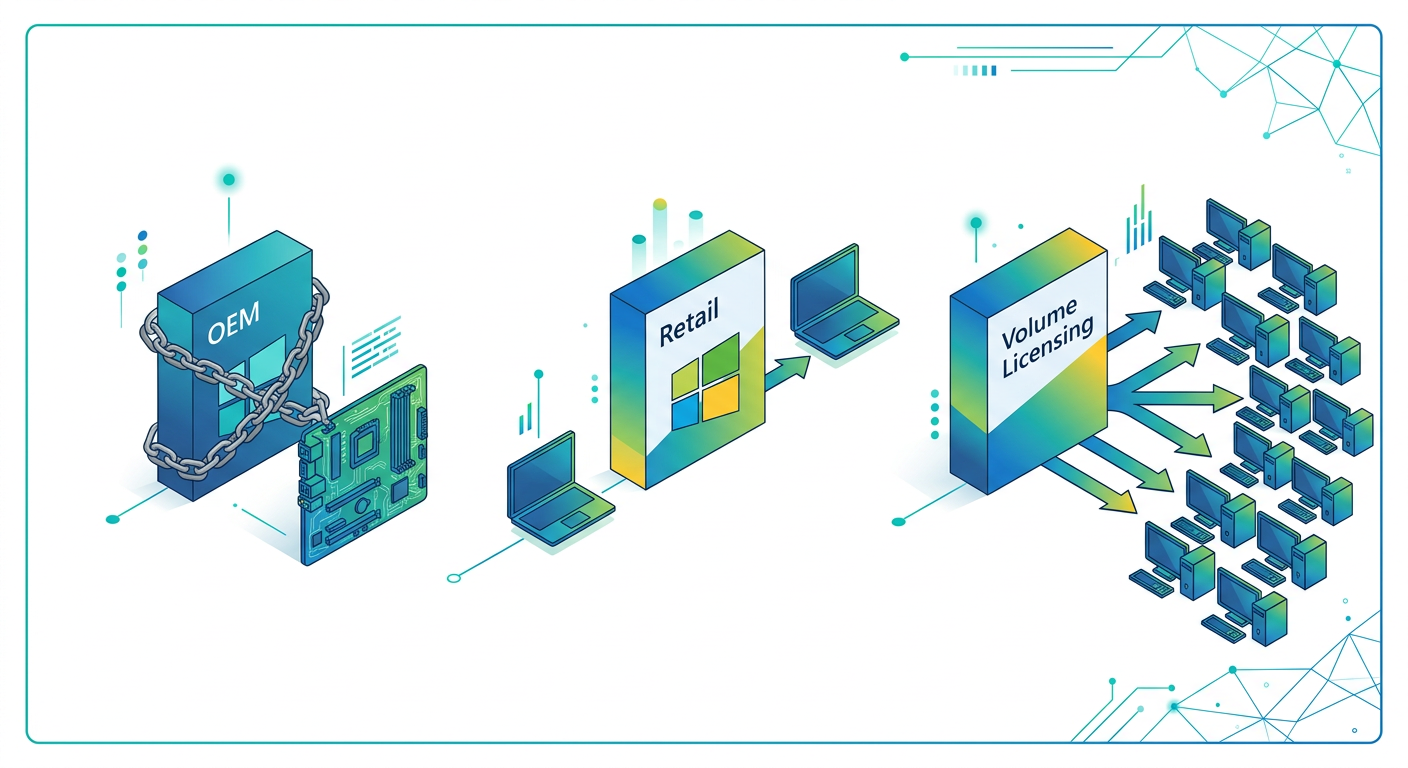
To truly grasp the implications for your organization, a deeper look into each license channel is necessary. Each has a specific purpose, and using them outside of their intended context is where audit troubles begin. The comparison of OEM vs Retail vs Volume Licensing reveals distinct advantages and, more importantly, critical limitations.
OEM: The Hardware-Bound License
An OEM license is the most common way consumers receive a Windows operating system. When you buy a new PC from a major brand, the Windows license included is an OEM license.
- Acquisition: Pre-installed on new hardware. The cost is bundled into the price of the machine.
- Identity: Historically proven by a Certificate of Authenticity (COA) sticker on the device's chassis. For newer devices, the key is embedded in the UEFI/BIOS firmware.
- The Golden Rule: An OEM license cannot be transferred to another computer. If the motherboard fails or the computer is decommissioned, the license is retired along with it.
- CRITICAL WARNING: You will find many online sellers offering cheap, standalone "OEM keys." These are not legitimate for personal or business use on existing hardware. Microsoft's distribution terms strictly forbid the sale of OEM licenses to end-users without the accompanying hardware. Purchasing and using these keys will result in an automatic failure during a software audit. For end-users installing software on a machine they already own, the only legitimate paths are Retail or Volume Licensing.
Retail (FPP): The Transferable, Single-Use License
Retail licenses are designed for consumers who are building their own PC or need to license a Mac for running Windows via Boot Camp.
- Acquisition: Purchased from a retailer as a physical box (with a USB drive) or a digital download and key.
- Flexibility: The primary benefit is the right to transfer the license to a new computer. If you build a new PC, you can deactivate the software on the old one and reactivate it on the new machine. This process is governed by specific Windows 11 license transfer rights, often managed by linking your license to a Microsoft Account.
- Business Limitations: While perfectly legal, Retail licenses are impractical for business environments. They lack volume management tools, and crucially, they do not grant reimaging rights. Deploying a standard corporate desktop image using a Retail key is a violation of licensing terms. Managing dozens or hundreds of individual Retail keys is an administrative nightmare and provides a poor audit trail.
Volume Licensing: The Business Standard
Volume Licensing is Microsoft's answer to the needs of organizations, from small businesses to global enterprises. It's less about the software itself and more about a flexible agreement governing its use.
- Acquisition: Purchased through a Microsoft Certified Partner or Reseller via an agreement tailored to the organization's size (e.g., Open Value, MPSA). This is the standard path for Microsoft Volume Licensing for small business and large enterprises alike.
- Key Benefits: This is where the real business value lies.
- Reimaging Rights: This is arguably the most critical right. A VL agreement grants a business the legal right to create a single, standardized "gold image" of an operating system and its applications, and deploy it to multiple, identically licensed machines. This is impossible to do compliantly with OEM or Retail licenses. Note: You must own a qualifying underlying license (usually OEM or Retail) for each PC you are deploying the VL image to.
- Downgrade Rights: Need to run Windows 10 Pro even though you own a license for Windows 11 Pro? Volume Licensing grants you the right to deploy prior versions of the software, a common need for application compatibility.
- Simplified Asset Management: All your licenses are managed in a central portal (the Volume Licensing Service Center or modern Microsoft 365 Admin Center), providing a clear, auditable record of your entitlements.
- Software Assurance (SA): An optional but highly valuable subscription added to licenses. SA provides a wealth of benefits, including new version rights (free upgrades), technical support, unique virtualization rights, and training vouchers. It's a key component for any business wondering which Microsoft license is best for business in 2026.
📊 Recent Changes & What to Expect in 2026
The licensing landscape is not static. Microsoft continuously evolves its programs to align with technological shifts and business models, primarily the move towards cloud services and subscriptions. Staying informed is key to making future-proof decisions.
The Unstoppable Push to Subscriptions
The most significant trend is the industry-wide shift from perpetual licenses to subscriptions. Microsoft is leading this charge with its Microsoft 365 offerings, which bundle Office apps, Windows OS upgrades, and cloud services (like Entra ID and Intune) into a per-user, per-month fee. For many businesses, the answer to "which Microsoft license is best for business in 2026" will increasingly be a Microsoft 365 subscription rather than a traditional perpetual Volume License. These subscriptions simplify licensing by tying entitlements to users instead of devices, which is better suited for a modern, mobile workforce.
Evolution of License Management Portals
The venerable Volume Licensing Service Center (VLSC), while still functional, is gradually being superseded by the Microsoft 365 Admin Center. For organizations with modern licensing (like CSP subscriptions or certain M365 plans), this portal has become the central hub for managing both cloud services and traditional software licenses. It offers more robust reporting and asset management capabilities, which are invaluable for maintaining a continuous compliance posture and preparing for an audit.
Increased Scrutiny on Virtualization and Cloud
As businesses migrate workloads to a hybrid or full-cloud model, licensing rules have become more complex. Microsoft audits are now intensely focused on:
- Virtual Desktop Infrastructure (VDI): Licensing Windows client OS (like Windows 11) in a VDI environment has specific, and often costly, requirements. The standard OEM or perpetual VL desktop license does not permit this use case without specific subscription licenses (like Windows VDA E3/E5 or Microsoft 365 E3/E5).
- Server Mobility: Running server applications like SQL Server or Windows Server on-premises versus in a public cloud (like AWS or GCP) involves different rules governed by Software Assurance and its License Mobility benefit. Misunderstanding these rules is a common and expensive audit finding.
The Future: Connected and Authenticated
Looking towards 2026 and beyond, expect perpetual licenses to become a niche product. The future of licensing will be tied to identity and cloud authentication. Even desktop operating systems will likely require regular online check-ins to validate license status against a user's account. For businesses, this means that identity and access management (IAM) strategies will become inseparable from software license compliance. Understanding your entitlements will mean understanding the subscription status and assignments for every user in your organization's directory.
✅ Quick Decision Framework: Which License is Right for You?
Choosing Your Licensing Path
Making the right choice boils down to your specific use case, scale, and need for administrative control. Use this framework to guide your procurement strategy and avoid common pitfalls.
- You are a home user building a new PC or licensing a Mac.
Your only legitimate path is a Retail (FPP) license. It provides the necessary transfer rights if you upgrade your hardware in the future. Do not be tempted by cheap online OEM keys; they are not valid for this scenario. - You are a business buying new hardware from a major vendor.
The computers will come with a pre-installed OEM license for the Windows operating system. This is the most cost-effective way to acquire the base OS license. However, this is only the first step. - You are a business with 5 or more computers.
You must layer a Volume Licensing agreement on top of your OEM licenses. Even the most basic VL agreement for Windows provides the reimaging rights essential for efficient and compliant deployment. This is the cornerstone of Microsoft Volume Licensing for small business and beyond. Without it, you are legally required to set up each machine manually using its unique OEM recovery media, an untenable situation for any organization. - You need to deploy a standardized corporate image across many PCs.
This action, known as reimaging, is only permitted if you have a Volume License. You must purchase at least one VL upgrade license for the edition of Windows you plan to deploy. This license key then unlocks the right to use a standardized image on all other machines that have a qualifying underlying license (like the OEM license they shipped with). This is one of the most critical Microsoft licensing differences and a major focus during audits. - You need to run an older version of Office or Windows for compatibility.
Only Volume Licensing grants downgrade rights. If you purchase a license for Office 2021 Professional Plus, for instance, your agreement may allow you to deploy Office 2019 instead if required by a line-of-business application. This is not possible with Retail or OEM licenses. - You want maximum flexibility, upgrade rights, and support.
A Volume License with Software Assurance (SA) is the answer. SA is the bridge to simplified upgrades, cloud migration benefits, and enhanced support. If you are debating which Microsoft license is best for business in 2026, an agreement that includes SA provides the most future-proof and flexible foundation.
🔐 The Audit-Ready Cheat-Sheet
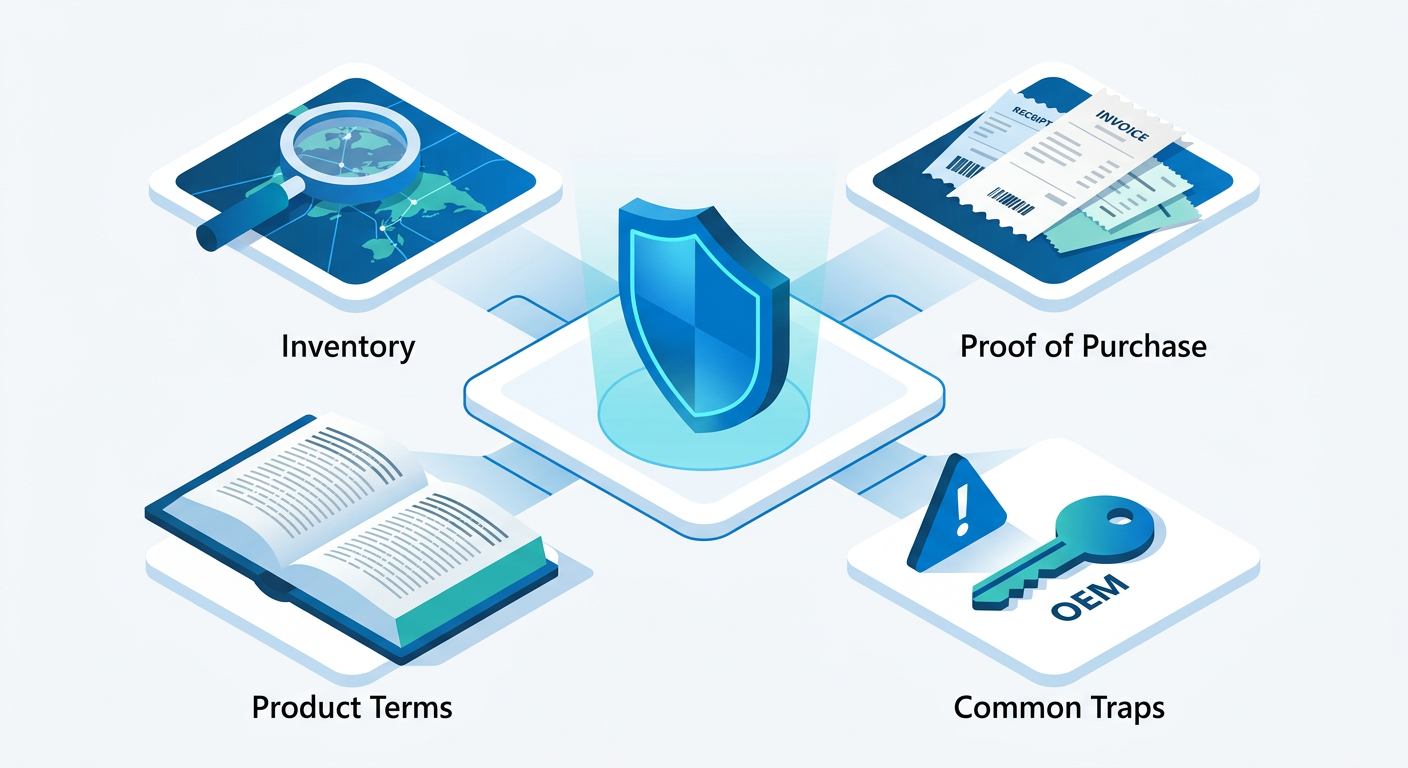
A Microsoft software audit, whether a friendly "Software Asset Management (SAM) engagement" or a formal Legal Contracts and Compliance (LCC) review, can be a disruptive and costly process. Being prepared is not optional. Following a clear Microsoft audit readiness checklist is your best defense.
1. Maintain a Comprehensive Inventory
The foundation of any compliance defense is a perfect inventory. You cannot prove you are licensed for what you're using if you don't know what you're using.
- What to Track: Every single instance of Microsoft software deployed on servers, desktops, laptops, and in virtual environments. This includes the specific version (e.g., SQL Server 2019) and edition (e.g., Standard or Enterprise).
- How to Track: Use automated discovery and inventory tools. Relying on manual spreadsheets is a recipe for failure. Tools like Microsoft's MAP Toolkit, or more robust third-party SAM solutions, are essential.
2. Centralize and Preserve All Proofs of Purchase
An auditor will ask for two things: a list of what you've deployed, and proof that you purchased licenses to cover it. Without a clear paper trail, your deployed software is considered unlicensed.
- Volume Licensing: Keep records of your VL agreements and purchase confirmations from your reseller. Your VLSC or M365 Admin Center portal is a good source, but your own invoicing records are the ultimate proof.
- Retail (FPP): Keep the physical boxes, product keys, and purchase receipts. For digital purchases, preserve the confirmation emails and account history.
- OEM: The proof is the invoice for the hardware that shows the operating system was included. The COA sticker itself is not sufficient proof of license. You need the receipt for the machine.
3. The Product Terms are Your Rulebook
Passing an audit requires understanding Microsoft Product Terms (formerly PUR). This publicly available document is the definitive source for all use rights. It defines the rules for everything from virtualization to downgrades. Auditors build their entire case from this document, and so should you. When you have a licensing question, the Product Terms—not a forum post or your own interpretation—is the final authority.
4. Watch for Common Red Flags
Auditors are trained to look for specific, common compliance gaps. Knowing them in advance allows you to proactively fix them.
- The OEM Trap: The single fastest way to fail an audit. Auditors specifically look for evidence of standalone OEM keys being purchased and applied to existing machines. This is always found to be non-compliant.
- Virtualization Licensing: Licensing Windows Server per-core in virtual environments, or licensing Windows 10/11 for VDI, is extremely complex. This is a huge source of non-compliance and massive true-up costs.
- Client Access Licenses (CALs): Forgetting or miscounting CALs for Windows Server, SQL Server, Exchange, etc., is another common pitfall. Ensure you have the correct type (User or Device) and version for every user or device accessing server resources.
- Mismatched Editions: Deploying a more expensive edition (e.g., SQL Enterprise) when you only own licenses for a cheaper edition (e.g., SQL Standard) is an easy find for auditors and will result in a significant shortfall.
5. When in Doubt, Ask an Expert
The best way to ensure you can how to pass a Microsoft software audit is to work with a specialist. A reputable Licensing Solution Partner (LSP) or a SAM consultant can help you interpret the complex rules, assess your current position, and remediate gaps before you receive an audit letter.
📚 Where to Dig Deeper for Official Guidance

While this guide provides a comprehensive overview, Microsoft's licensing rules are detailed and subject to change. For definitive answers, always refer to official sources or consult with certified experts. Self-education is a powerful tool in maintaining compliance.
Microsoft Product Terms Document
This is the most important resource for any IT professional managing Microsoft licenses. It is a searchable, publicly available document that details the use rights for all Microsoft products acquired through Volume Licensing. It is updated monthly. Make a habit of checking the current version when you have questions about a specific product's rights, as this is the exact document an auditor will use to judge your compliance. Key topics like virtualization, downgrade paths, and specific Software Assurance benefits are defined here in granular detail. A core part of your role should be understanding Microsoft Product Terms.
Official Microsoft Licensing Website
Microsoft maintains a vast public website dedicated to explaining its licensing programs. Here you can find high-level overviews of different Volume Licensing agreements (Open Value, MPSA, Enterprise Agreement), datasheets on product licensing (like SQL Server and Windows Server), and training materials. It's a great starting point for understanding program structures.
Your Licensing Solution Partner (LSP) or Reseller
Your Microsoft reseller is more than just a vendor; they should be your expert advisor. A good partner has licensing specialists on staff who can provide guidance on the most cost-effective and compliant way to structure your agreements. They are particularly valuable for small businesses navigating the complexities of their first VL agreement and can be an instrumental resource for queries about Microsoft Volume Licensing for small business.
Third-Party Licensing Experts and Blogs
The licensing community is vibrant, with many independent experts who share their knowledge through blogs and forums. While these should not be treated as a substitute for official documentation, they can provide valuable real-world context and analysis of complex scenarios, such as interpreting nuanced rules around Windows 11 license transfer rights for Retail products or the implications of new subscription models.
📊 Comparison
| Feature | OEM (Original Equipment Manufacturer) | Retail (Full Packaged Product) | Volume Licensing (VL) |
|---|---|---|---|
| Acquisition Method | Pre-installed on new hardware by the manufacturer. | Purchased from a retail store or online as a boxed product or digital download. | Purchased through a reseller via a contractual agreement (e.g., Open Value, MPSA). |
| Transfer Rights | None. License is permanently tied to the original hardware ('dies with the machine'). | Yes. Can be transferred to a new device, as long as it's removed from the old one. | Generally no for OS, but yes for applications under certain conditions (e.g., with active SA). |
| Downgrade Rights | Limited and specific to certain OEM agreements (e.g., Windows 11 Pro to Windows 10 Pro). Not universal. | None. You can only use the version you purchased. | Yes. A key benefit, allowing deployment of prior software versions for compatibility. |
| Reimaging Rights | None. Using a standard image for deployment is a compliance violation. | None. Each installation must be from the original retail media/installer. | Yes. The primary method for gaining the right to deploy a standardized 'gold image'. |
| Management & Keys | Managed per-device. Key is embedded in firmware or on a COA sticker. | Managed per-license. Each copy has a unique key that must be tracked. | Centralized management via VLSC/M365 Admin Center. One key can activate multiple installs. |
| Best For... | The base OS on a new PC purchased by anyone (consumer or business). | Individual consumers building their own PCs or licensing a Mac for Windows. | Any organization with 5 or more devices requiring standardized deployment and management. |
| Audit Risk Profile | High, if purchased as a standalone key. Low if acquired legitimately with new hardware. A major point of audit failure. | Low, but presents administrative burdens at scale. Lacks business-critical use rights. | Lowest. Designed for corporate compliance, providing a clear audit trail and necessary use rights. |